Plaspy now offers a dark theme on the web, clearer GPS maps and the option to switch between card and PayPal when editing an eligible subscription. This release also improves tracking with larger text on Android, helps route invoices to your accounting team and makes data from supported Queclink trackers easier to interpret.
Dark mode for GPS fleet tracking on the web
Use the footer menu to choose Light theme, Dark theme or System theme. Your browser remembers your choice, and System theme follows your device's appearance settings. Map controls, tables, charts and pages such as checkout adapt to your theme. The 3D marker selector keeps light thumbnail backgrounds so you can tell the vehicles apart before picking one.
If you manage a white-label domain, use Allow dark mode in its style settings to control whether users can choose it. Controls that use your account's custom colors continue to reflect that branding. A night-shift dispatcher can use a dimmer interface without changing the day shift's preferences in another browser.
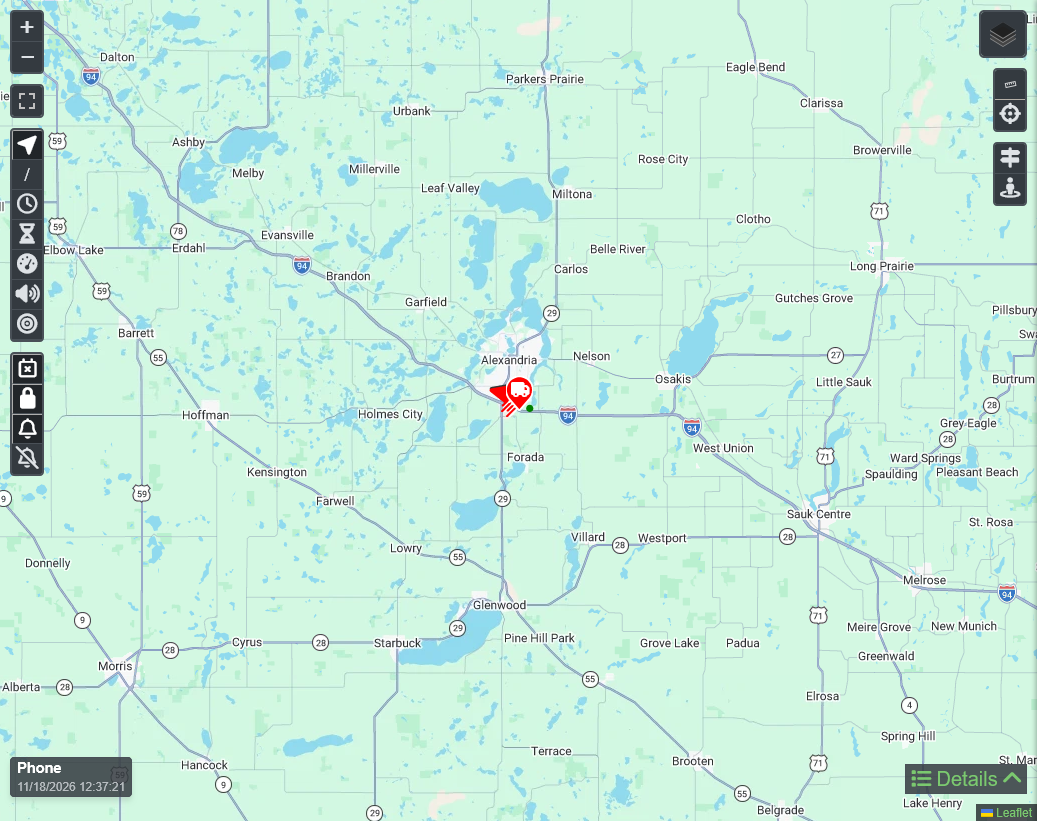
The Plaspy demo map in dark mode. The controls follow the theme; the basemap retains the style of the selected layer.
Live GPS map, critical alerts and fleet dashboard
The Plaspy map layer shows sharper street details and labels on high-density screens, including many phones. We also fixed live updates on the map and on individual device pages. Users with editing permission can rename a tracker directly in the map's device list using visible save and cancel controls.
When several critical alerts are active, visible markers take turns animating. When multiple events for the same vehicle arrive together, the newest one gets the pop-up; the other events remain in the notifications list. A dispatcher can focus on the map and still review what happened: a marker that is not currently animating can still have an alert.
We fixed live block updates when the Dashboard is set to Whole account. The blocks now reflect incoming fleet data without switching filters or reloading the page. This is useful when checking how many vehicles are moving at the start of a shift. Dashboard access still depends on permissions and the number of visible devices.
Easier to use with larger text, plus a new mobile app page
On Android, the navigation and map buttons now scale when the phone uses larger text. Controls rearrange when space is limited, and the route timeline scales with the text. On the web, we improved the layout at higher zoom levels, including tracker specifications, plan cards and download buttons. Screens that need a date and time now use a consistent picker that also accepts typed dates.
The new Plaspy mobile app page for iPhone and Android brings together download links and interactive demos of the map, trips, statistics and other screens. You can use the app to monitor your fleet or configure the phone to report its own location when it has the necessary permissions. The video shows an existing app feature in the demo account: playing back a trip and checking the time, address and speed at each point.
English-language recording of the app using the Plaspy demo account.
Switch payment methods when editing a GPS subscription
Go to My Account → Subscriptions → Edit subscription to switch between an eligible card and PayPal without cancelling your GPS subscription yourself. The same screen lets you adjust the number of devices when your plan and selected payment method allow it. The summary separates what you pay now, if anything, from what you pay monthly or yearly, and shows when the recurring amount takes effect.
For example, if your business switches its renewals from card to PayPal while adding vehicles, you can review the amount before you confirm. When there is an immediate charge for the remaining days of the added devices, PayPal includes it in the same approval. If you switch from PayPal to a card, the selected card becomes the default for the account's card-renewed subscriptions. Review the method, date and amount before confirming, particularly if you have an outstanding renewal.
Payment method changes are available on the web for eligible recurring device subscriptions. Manage subscriptions billed through Google Play or the App Store in the respective store. Adding a card no longer removes the retry option for an eligible outstanding renewal. If billing details are missing when you add a card, Plaspy prompts you to complete them first.
Send invoices and renewal notices to a billing email address
In My Account → Billing information, you can set a Billing email separate from your sign-in address. When set, it receives electronic invoices and license expiration reminders; failed-payment notices also go to the account email. Leave the field blank to use the usual account email. Electronic invoice PDFs include the QR code as an image so it remains visible when you open or print the document.
That lets a business route invoices to accounting without changing the fleet manager's login. And when you attach a screenshot or document through Contact Us, the support team can view it alongside your message to better understand the issue.
AI assistant improvements for reports, statistics and help
In Reports, the assistant can adjust multiple columns in one request. In Statistics, naming several devices keeps all identified devices selected instead of only the last one. Some suggested prompts use device names from your account and adapt to the type of report. The Help assistant looks up Plaspy documentation before answering product questions.
For instance, ask the assistant to keep only the date and distance columns in a report, or compare devices from two delivery routes in Statistics. Check the selected devices, dates and columns before exporting or sharing the result.
Cleaner GPS route history and better Queclink tracker data
For supported Queclink trackers, Plaspy interprets more of the data reported by the device, including ignition, inputs and outputs, voltage, engine hours and analog readings, depending on the model, wiring and setup. This update corrects ignition interpretation in messages from the GV300 family and speed readings from the GV355CEU. The available commands adapt to the detected model, and commands rejected by the protocol are no longer shown as sent.
When a Queclink tracker reconnects and sends positions in a batch, Plaspy processes the full batch of valid reports. Check-in messages no longer overwrite the event on the last position. For eligible trackers that only send check-ins while asleep, Plaspy reduces repeated points in route history while still using those messages to detect whether the tracker goes offline. If the tracker later sends actual positions it recorded, those positions can replace estimated sleep-mode points for the relevant part of the trip. This makes it easier to distinguish a stop from route data recovered after a coverage gap.
What to check in your fleet operation
Dispatch: choose a theme, check Whole account on the Dashboard and review the notifications list when multiple alerts arrive.
Billing: review the immediate charge, recurring amount and billing email before confirming a switch between card and PayPal.
Tracker installation: verify readings and command availability on each device page. The data depends on what the installed tracker reports. A tracker that is still communicating has not necessarily sent a new GPS position.
A monitoring team needs more than dots on a map. It needs to identify vehicles requiring attention, compare groups, review today's activity and keep tracking services active. This Plaspy update introduces a configurable GPS fleet dashboard alongside improvements to maps, reports, alerts, subscriptions and SIM line renewals that connect those daily tasks.
Plaspy tracks vehicles and other assets using GPS trackers or phones, lets users review routes and helps analyse the information devices report. These improvements support both businesses managing their own fleets and resellers managing devices for multiple customers. This article explains what you can do, where to find the options and which conditions apply.
A new GPS fleet dashboard for operational oversight
The Dashboard is introduced in beta as a collection of indicators and lists updated with your devices' information. Instead of opening several vehicles to understand the overall situation, you can bring a map, moving vehicles, pending alerts, daily activity and maintenance information together on one screen.
For operational accounts, access requires more than 10 devices visible to the user and permission to open the Dashboard. It does not grant access to additional equipment: each user retains the device scope of their account or profile. Single-device logins do not include this section.
The demo includes example dashboards you can explore: change the view, filter a group and open a device from an indicator. It does not allow editing block layouts or saving custom dashboards to the demo account.
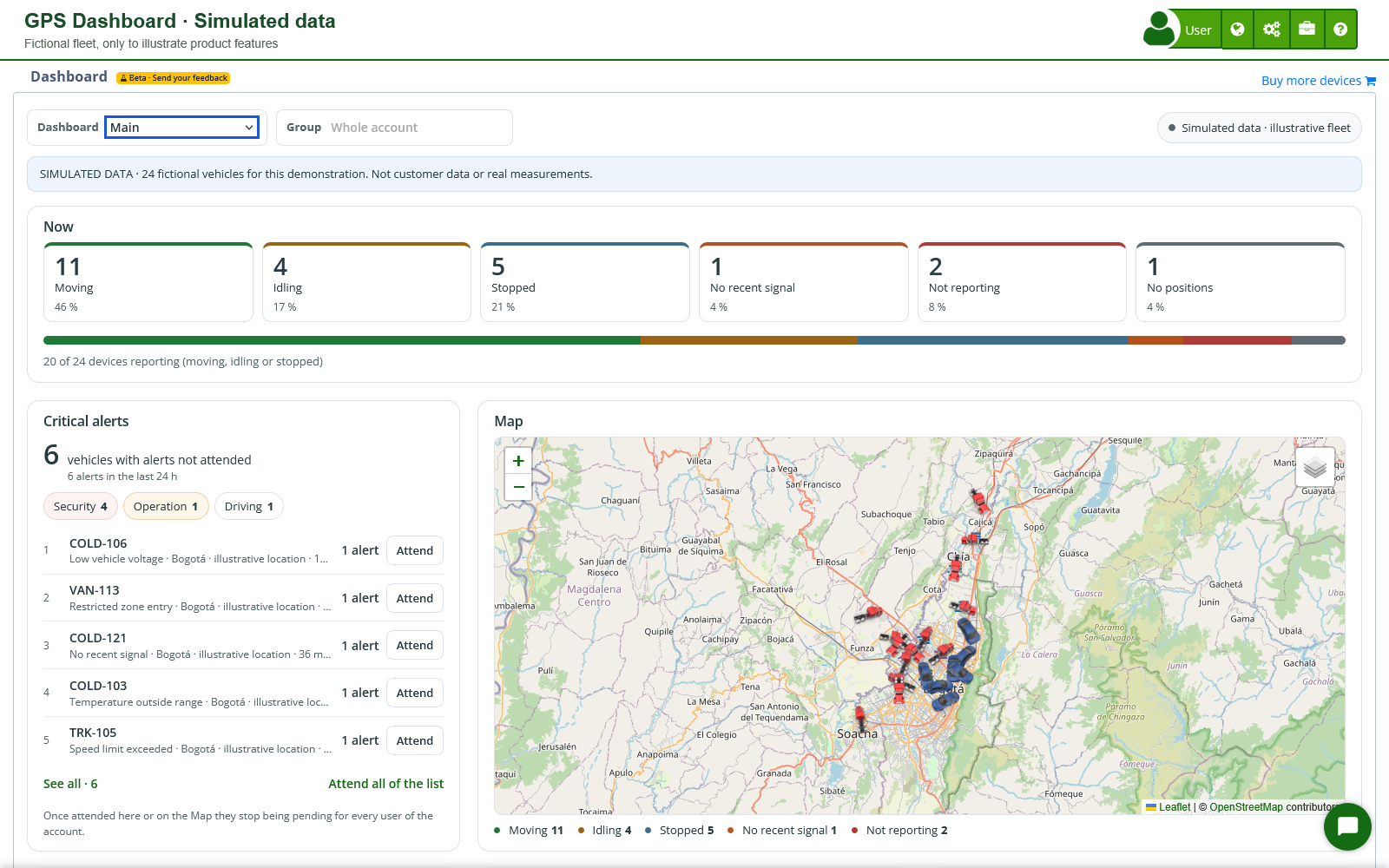
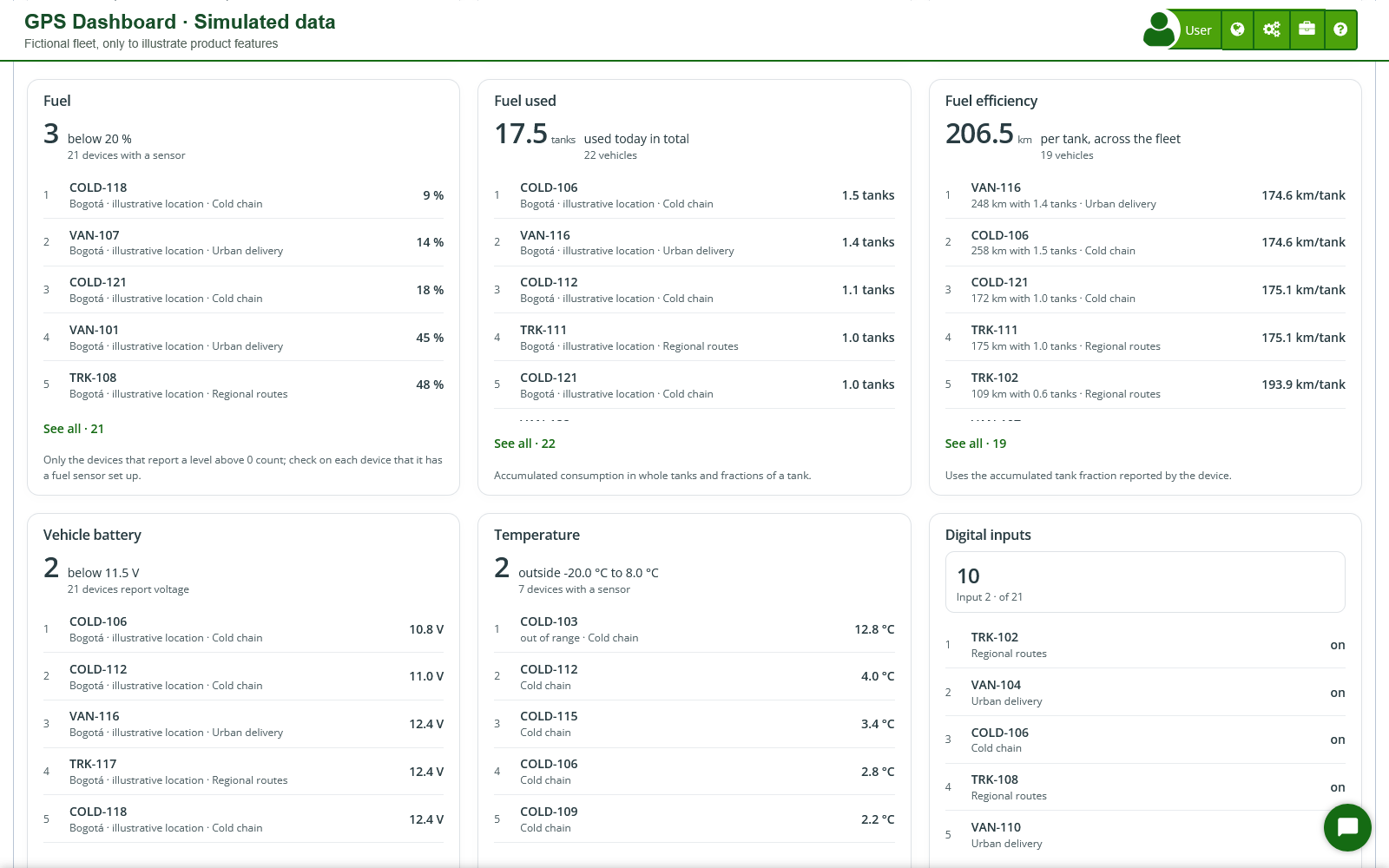
Visual example with simulated data: the Dashboard screenshots and video in this section use 24 fictional vehicles, three groups and illustrative situations to explain its indicators. They do not represent customer data or measured results from a real fleet.
Real Dashboard interface with an illustrative dataset of 24 fictional vehicles: varied statuses, alerts and example locations. These are not customer data or actual measurements.
Build separate views for operations, driving and maintenance
Use Add block to choose the information you want. You can create multiple dashboards, rename them and use Arrange to move blocks and adjust their width or height. You can also duplicate a block with different settings, undo adjustments or cancel an arrangement before saving.
The Group filter focuses a dashboard on part of your operation. Each block can also have its own group: compare two branches on the same screen, for example, or keep a priority group visible while changing the overall filter. This keeps results from vehicles with different responsibilities from being mixed together.
For accounts that save their settings, the pin selects the Dashboard as the start page. Browser and mobile app start pages are chosen separately. Shared-access users retain their adjustments in that browser and cannot change the account's start page.
Walkthrough of the real interface with a fictional fleet: review overall status, filter a group and inspect driving, alerts and sensors. Data is simulated only to illustrate these features, not measurements or results from a real fleet. Open full-size video.
A catalogue of 38 block types for practical decisions
Blocks display current information, daily totals or activity since the dashboard was opened. Select those that support your operation rather than filling the screen with indicators your equipment cannot report.
Capability
What you can review and why it matters
Fleet status and location
Now, Fleet status, Map, No recent signal and Devices not reporting distinguish movement, idling, stops and missing updates. The map block initially uses OpenStreetMap and can focus on vehicles with issues.
Movement and speed
The Devices moving, Devices idling, Devices stopped and Speed blocks show what is happening now. Average speed, Top speed, Speeding, Idling of the day and Aggressive driving support reviews of vehicle use and driving behaviour.
Daily activity
Distance of the day, Moving time of the day, Stopped time of the day, Engine hours and Daily use help compare vehicles. Fuel used and Fuel efficiency add context where the devices provide the required data.
Session activity
Trips, Stops, Longest stop and Ignitions follow activity since the dashboard was opened. They help monitor an ongoing shift without mistaking that observation for a complete historical query.
Alerts and priorities
Critical alerts, Alerts, Alerts by type and Where the problems are bring together events and their locations to prioritise vehicle review. Separate blocks can follow different alert types.
Sensors
Fuel, Temperature, Vehicle battery, Ignition (input 1), Input 2 time and Digital inputs cover levels, voltage, ranges and states, only where a correctly configured tracker reports them.
Maintenance and service
Upcoming or overdue reminders brings together date- and mileage-based notices. Expired devices distinguishes license expiry from a configured service expiry date; Your customers groups operational issues by device group.
For example, an operations manager can combine Fleet status, Map, Critical alerts and Distance of the day to review a shift. A maintenance manager can build another view with reminders, battery voltage, fuel and temperature. Both work with the devices they are authorised to see, while putting the information relevant to their role first.
Illustrative fuel, consumption, efficiency, voltage and temperature data. Low-level and out-of-range temperature examples show how the view highlights situations that need review.
Go from an indicator to the vehicle and alert action
Indicators open lists showing which devices explain a result. See all expands the list, and a device opens the same detail window used by the Map. See on the Map then takes you to its location without having to find that vehicle again.
The Critical alerts block shows pending alerts from the last 24 hours that were configured to be highlighted as critical. You can acknowledge an individual alert or confirm acknowledgement of those in the list. Once acknowledged, they stop being pending for all users of the account, so this action should follow your monitoring team's procedures.
Read each indicator with its time window, units and sensors in mind
Daily values use the account's date and time zone. Other blocks, including trips, stops, ignitions, maximum speed and certain alerts, observe activity since the dashboard was opened. For Aggressive driving, compatible devices provide daily counters; where they do not, available information comes from alerts received during the session.
Distance, speed and temperature respect configured units, including kilometres or miles and Celsius or Fahrenheit. Accumulated consumption expressed in tanks means full tanks and fractions of a tank; it is not labelled as litres or gallons without a supported volume measurement. A missing sensor is not treated as a zero reading.
Block limits organise and highlight that view. They do not by themselves create a device alert or send messages: notifications require the device's alerts and channels to be configured. Likewise, Your customers uses device groups to show operational issues; it does not replace the commercial customer records in My customers.
Smoother GPS maps and better tracking continuity
Map loading and drawing have been improved to reduce freezing when handling many markers or critical alerts. Live connection recovery has also been adjusted so a prolonged interruption does not cause increasingly long waits before another connection attempt. This helps monitoring resume when connectivity returns, without promising positions the tracker has not yet sent.
Opening the Map again retrieves pending critical alerts from the relevant period. Recovery of a device's last position after it stops reporting has also been corrected. That position helps investigate where its latest data arrived, but it does not confirm that the vehicle is still there in real time.
Map-type preferences are stored separately for the browser and mobile app. If an alternative layer is used on opening because the saved one is unavailable, opening it does not itself overwrite your choice. Embedded group maps and their markers also receive loading fixes.
Timeline details with better fuel and temperature interpretation
In route history, the Timeline lets you review activity and open its details. Fuel consumption calculations now correctly use tank fractions, including a second tank when present. Where tank capacity is configured, the calculation uses it to determine the corresponding quantity.
Temperature readings of 0 °C are retained when calculating minimums and maximums instead of being treated as missing information. Initial stop, movement and idling counters and average sample speed have also been corrected. For cold-chain operations or vehicles with multiple tanks, this helps you review a journey using the units and measurements actually received.
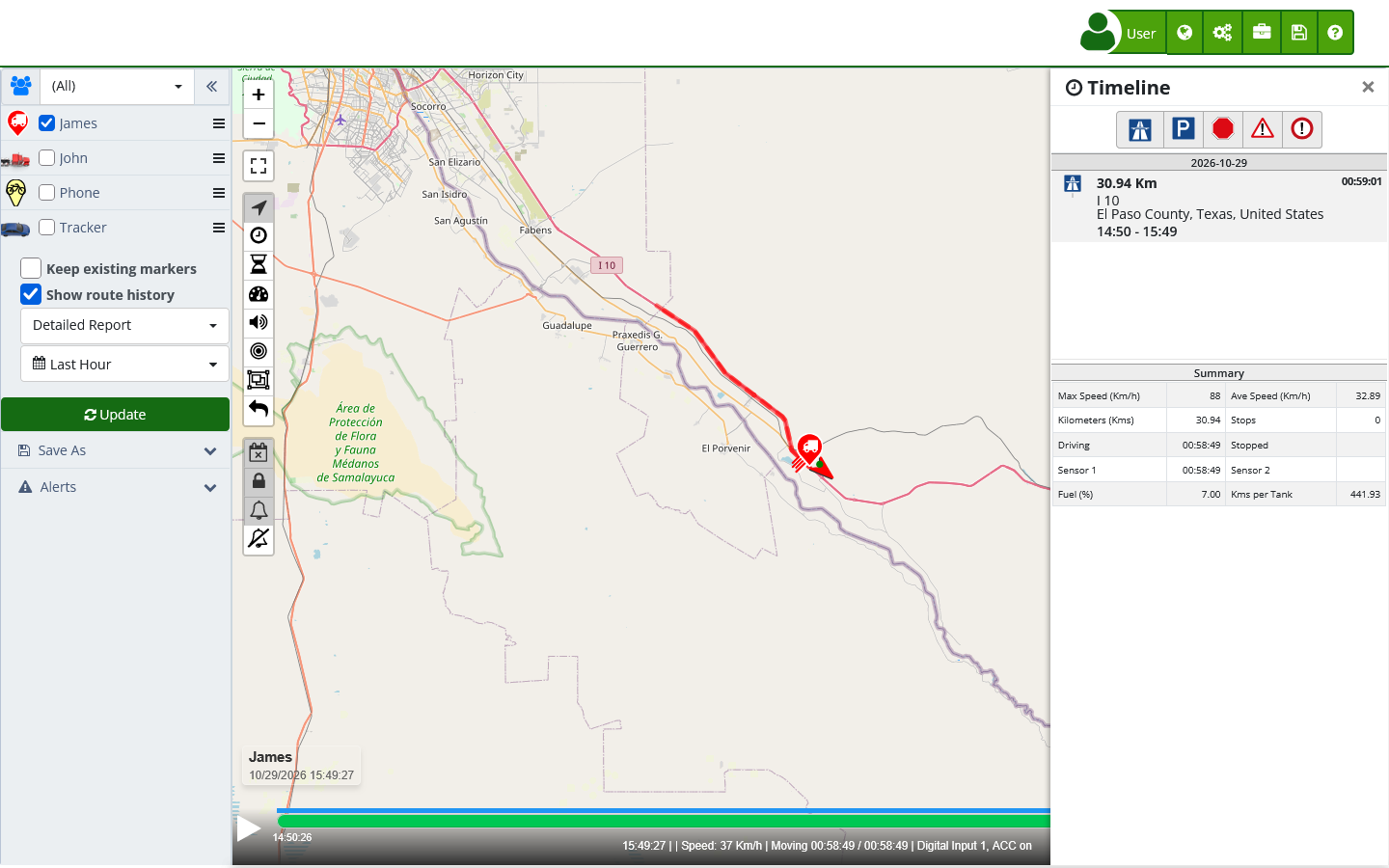
Actual demo screenshot: the Timeline brings a route and its summary together. Available data depends on the tracker and its sensors.Open route-history details to review the summary and replay the route. Actual demo recording in English; it illustrates the workflow, not a performance comparison. Open full-size video.
More precise reports, statistics and alert configuration
In Reports, Excel export uses the full query with the selected period, devices and filters, regardless of the page or loading point currently shown on screen. You can prepare an activity analysis without accidentally exporting only part of the query.
When customising a report, variable search treats names with parentheses or other characters literally. You can search by a complete variable name and its unit. Report column settings are also kept separate so one report's configuration does not interfere with another.
Statistics corrects mileage conversion to miles and the calculation of harsh braking and acceleration for the queried period. If dates are entered in reverse order, both ends of the interval are used correctly. These corrections help compare journeys and driving behaviour using the selected period and units.
Low battery alert editing allows you to enter the percentage. In bulk editing, Replace removes the selected devices' existing alerts and applies the new configuration; Add preserves the earlier alerts. Review the devices and rules before replacing them. The bulk alert editing guide explains the difference.
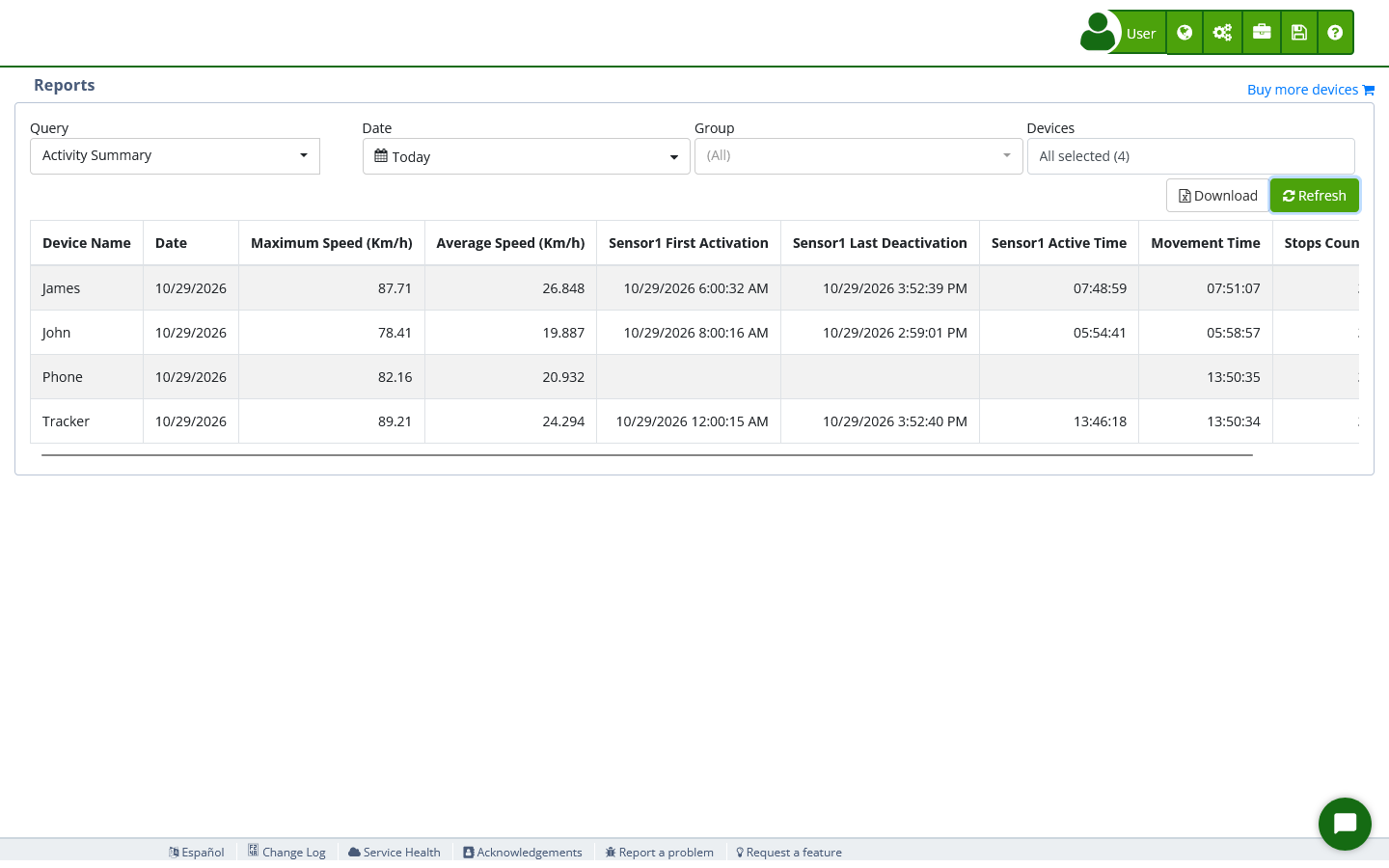
Actual Reports screenshot with demo data. Check the query, date and devices before refreshing or downloading.Choose Activity Summary, refresh the query and use Download to obtain the Excel file. Actual recording in English without modifying customer data. Open full-size video.
Renew several Claro SIM lines with one payment
The Lines section, available from Settings for accounts with associated lines, introduces selection of several lines to renew together. Review the number, description, device, expiry and remaining days, remove lines you do not want to renew, and complete one payment for the selection, with up to 100 lines per operation.
The choices distinguish Renew Data Only from complete plans including one year of a Standard or Professional license. SIM connectivity and the tracking license are different services: data-only renewal does not include a new Plaspy license. Purchase cards explain each option and update the total for the selected lines.
For example, a business with several SIMs approaching expiry can prepare their renewal in one review and one payment instead of repeating the process for every vehicle. Selection remains limited to lines shown in the account and eligible for renewal through this channel under the operator's conditions.
Keep each line's dates or activate the licenses now
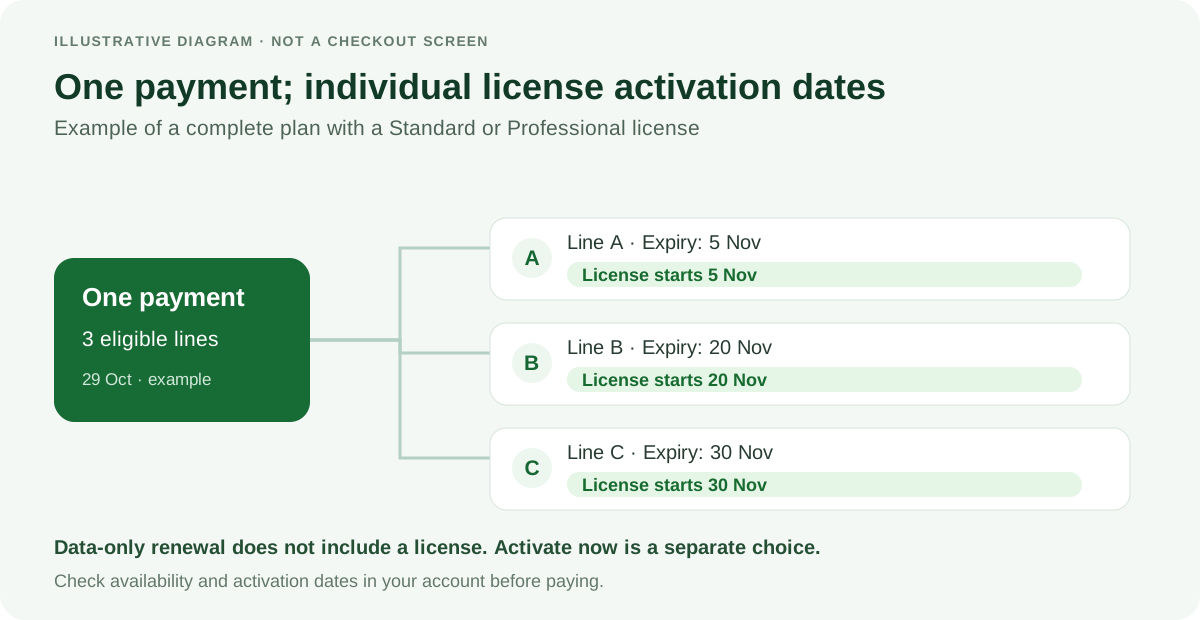
When you purchase a complete plan, the associated Plaspy licenses are scheduled according to each line's expiry. You can pay together even when the lines have different dates without automatically starting every license on the purchase date. Licenses for already-expired eligible lines start from the current time.
Activate the Plaspy licenses now lets you choose immediate activation when you need that capacity today. Review the choice before paying: immediate activation and scheduled activation at expiry are different options. The receipt shows the activation and expiry dates of the included licenses.
Illustrative diagram, not a checkout screen. In this complete-plan example, one payment covers three lines while each license keeps its own start date. Dates are examples; data-only renewal does not include a license.
The list distinguishes active, expiring and expired lines and adapts better to phones. When lines are approaching expiry or have recently expired, a notice appears at the top of other pages. Open renewal from that notice or postpone it; a new expiry or greater urgency can make it appear again sooner.
An expired line cannot always be renewed online. Where the operator does not allow it, the screen explains the limitation and provides the corresponding support options. See the line management and renewal guide and check the availability shown for your account.
Adjust your subscription without creating another one
Under My account > Active subscriptions, eligible subscriptions show an edit button with a pencil icon that opens Change devices to adjust the device quantity while keeping the existing subscription. The page compares current and new quantities and amounts, shows the next payment date and lets you check whether anything needs to be paid now.
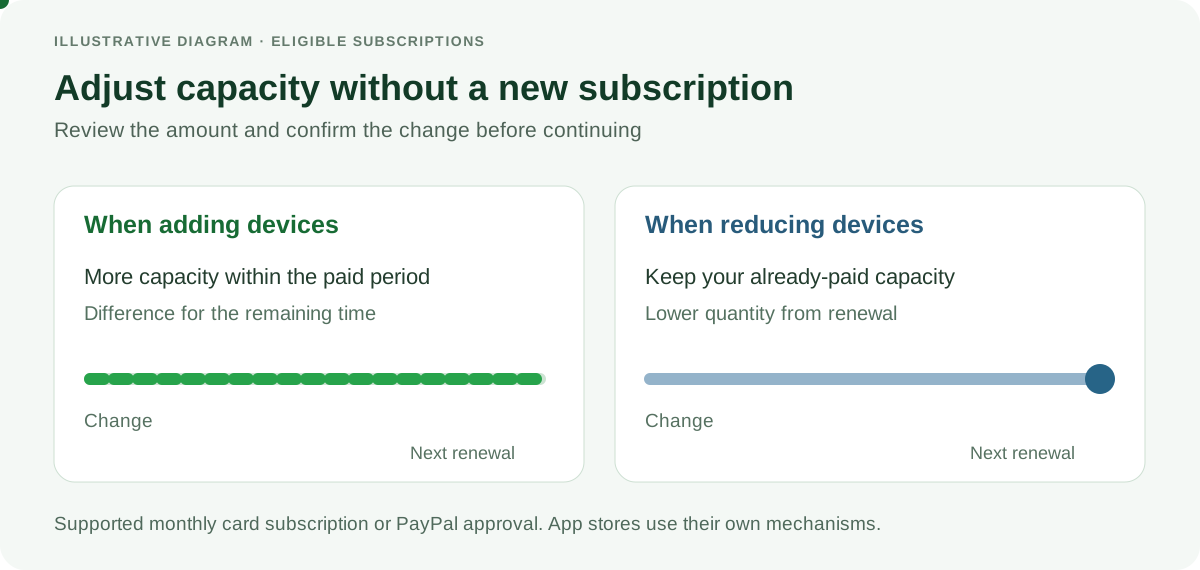
Adding devices calculates the amount for the remainder of the already-paid period. Reducing the quantity keeps your paid capacity through the next renewal, with the new amount applying from that charge. Calculation uses your subscription's pricing conditions rather than forcing you to create a new subscription to expand your fleet.
This applies to eligible, current Standard or Professional recurring tracking subscriptions: supported monthly subscriptions for card payments, and subscriptions requiring the holder's approval in PayPal. Purchases managed by Google Play or the App Store retain their own mechanisms and should not be confused with this option.
If a difference is payable, the screen details the amount and related pending receipts. With a card, you can choose a supported saved payment method; with PayPal, the interface distinguishes paying the difference from approving the subscription change. A rejected card charge is not presented as a completed capacity increase.
Illustrative diagram: added devices are calculated for the remaining period; reducing the quantity keeps paid capacity through renewal. The review page determines the amount and applicable conditions.
Retry a renewal after confirming its amount
When an eligible renewal did not complete, Retry payment lets you review the amount and confirm another attempt without deleting and recreating the subscription. Choose a supported card or follow the PayPal flow where available. Merely opening the review page does not itself confirm a charge.
Additional fixes cover one-time payments with a saved card, foreign identification containing letters or hyphens in ePayco payments, and recognition of Google Play purchases when the subscription has already been registered. For foreign documents, the actual billing information is retained for invoicing. Result pages distinguish approval, pending processing and rejection so you can check the outcome before attempting another transaction.
Clearer receipts and license transfers
The receipt brings together the complete payment, its items, taxes and total. Where a purchase includes licenses starting on different dates, it shows their schedule and associated receipts. Those receipts are identified as included in the original payment so they are not mistaken for separate new purchases. Invoicing is also adjusted so the total and VAT match the amount actually charged.
On an eligible receipt, Transfer prepares the transfer of a paid, unexpired Standard or Professional tracking license. A confirmation with the corresponding details appears before the code is generated and emailed to the receipt owner. If an associated active recurring subscription prevents transfer, the screen explains that condition.
This supports account reorganisation without confusing the person viewing a receipt with its owner. Transfer does not apply to every balance or product and should not be understood as an automatic recurring-subscription transfer.
Groups API: restore organisation in your GPS integrations
A fault that could return HTTP 500 and prevent Groups API operations from being handled has been corrected. Groups organise devices by customer, branch or activity; an integration can read that structure and keep it aligned with a business system without repeating every adjustment manually in Plaspy.
The fix restores processing of existing operations, such as listing, creating and updating groups; it does not introduce new permissions or change their routes. If your integration received that error when listing groups, check GET /api/groups again once the update is available. Access still requires valid authentication and an administrator user with permission to manage groups.
My customers becomes available more widely
My customers is no longer limited to a previously enabled group of accounts and is shown to accounts meeting its access requirements. A preview can appear from 50 licensed devices, combining Standard and Professional licenses; saving and operating still requires 100 or more. Subusers remain subject to their groups and privileges, and the free version is not included.
The section manages customers, plans, payments and expiry dates for the service you sell. Preview mode helps you explore that workflow before adopting it; it does not save records or confirm payments. See the My customers guide for its commercial features.
Other everyday usability improvements
In sections with the AI assistant, stopping a response is treated as intentional cancellation rather than failure. Incomplete technical citation markers are kept out of the displayed answer while available source links are retained. File downloads correctly support names containing commas and accented characters, preventing the Chrome error those names could cause.
Device and User windows strengthen confirmation before deletion. Critical-alert actions respect the devices visible to each user, and signing out remains possible when a subscription has expired. These changes help teams using shared monitoring workstations or switching accounts.
When contacting Plaspy through WhatsApp, commercial assistance includes the initial data-processing notice and the Yo me comunico option, meaning you prefer to resume contact yourself. Out-of-hours callback choices let you select an upcoming morning or afternoon of service. These preferences concern commercial contact with Plaspy, not your GPS alert settings.
Public technical summary for operations and engineering
Indicator periods: distinguish current readings, daily totals and events since dashboard opening. Use Reports, Statistics and route history to reconstruct earlier periods.
Sensors and units: fuel, temperature, voltage and inputs depend on device reporting. Changing units preserves the meaning of configured limits; a tank fraction is not turned into a volume without a known capacity.
Permissions: the Dashboard does not expand device visibility. Acknowledging a critical alert updates its pending status for the account's users.
Services: distinguish the SIM, Plaspy license, recurring subscription and My customers service date. A line reference in My customers does not renew its data plan in Lines.
Payments and activation: check amounts, confirmation and dates before completing changes. A payment under review or a pending PayPal approval is not a completed operation.
Build the working view your fleet needs
Once the update is available in your account, start with a dashboard containing the indicators you use for daily decisions and focus on a specific vehicle group. Review Lines notices and My account options to maintain the connectivity and capacity you need. Plaspy documentation complements this workflow with device, alert, report and service configuration.
My customers brings the commercial side of GPS tracking into Plaspy: customer records, service plans, subscriptions, payments and expiry reminders linked to the devices you manage. GPS resellers and installers can see what each customer purchased, which equipment is covered and when the service needs renewal, instead of keeping that relationship only in a spreadsheet.
Plaspy is a GPS tracking platform for locating vehicles and other assets with trackers or phones, viewing their position on a map and reviewing activity. The new section connects that tracking service with its customer and payment information. Your team can handle an enquiry or a renewal with the commercial context and the service status in the same place.
Availability: My customers is introduced in beta for enabled accounts. Saving information requires at least 100 licensed devices, combining Standard and Professional licenses; the free version is not eligible. Enabled accounts with fewer licenses and the demo account can explore a read-only preview without saving records, confirming payments or sending test messages.
GPS reseller customer management in one place
Open the briefcase menu, My customers > Customers, to record names, company details, identification, email addresses and phone numbers. Each customer record brings together their subscriptions and, depending on your permissions, payments and notifications. An operator can answer a service question without first finding a contact list, then a contract and finally a payment receipt in separate places.
Link customers to their users and devices
If a customer uses a subuser of your account, you can link that user to their customer record. This helps add their devices to a subscription and selects that user's language for messages. Notes and custom tags on customers, subscriptions and items let you retain useful context, such as a service area, contract number or vehicle registration.
Find the right account and prioritise payment follow-up
Search covers contact information and associated equipment or lines, including device names, codes, IMEIs and phone numbers. Filters distinguish customers with active plans, overdue or suspended plans, and no plans. For example, when a driver only knows a recorded vehicle registration or device identifier, your team can find the relevant customer and review the service.
With the Export privilege, customer, subscription and payment lists can be downloaded to Excel with the current search and filters. This lets you prepare a collections review or sales follow-up from the same records you are examining. See the customer management guide.
Service plans with your own prices and billing periods
Under My customers > Settings > Plans, create reusable tariffs with a name, description, price, period in days, months or years, and grace days. You can charge per item or set a fixed price for the entire subscription. A monthly tracking service might use a price per vehicle, while a fleet service agreement might use one overall amount.
Selecting a plan avoids having every salesperson re-enter its price and conditions. Open (custom values) supports agreements with individual prices and periods. The Open plans for every user setting determines whether your team may use this option; when disabled, it is reserved for account administrators or groups with the Administrator privilege for Subscriptions.
These are the plans your business sells to its customers, not the license rates your business pays Plaspy. Editing a plan does not immediately update every existing subscription: each keeps its saved values until it is saved again with that plan. Review service plans and per-item pricing before changing commercial terms.
Subscriptions that connect expiry dates to GPS service
In Subscriptions, define the customer, service, price, period and Paid until date. Items can include devices in your Plaspy account, external identifiers and phone lines. External identifiers and lines let you keep references for the services you bill; they do not automatically renew equipment on another platform or a mobile operator's service plan.
When Renewing extends the linked Plaspy devices is enabled, a confirmed payment that renews the subscription also updates the expiry of its linked devices. Your team no longer needs to record that payment and then manually renew each covered device as a separate task.
Follow the devices assigned to a customer's account
If the customer has a linked Plaspy user, Follow the customer's Plaspy account can add devices that user receives and that are not already covered by another subscription. Additions respect the available record quota. Device names and phone numbers remain linked to their current device information; devices deleted or moved to another account are removed from the subscription items.
A device, external identifier or phone line cannot belong to two non-cancelled subscriptions at once. Removing a device from a synchronised subscription turns off synchronisation for that subscription so the device is not added back against your decision.
Separate active, overdue, suspended and cancelled services
A subscription is Active while its paid date has not passed, Past due during the grace period, and Suspended once grace ends without payment. Where device renewal is enabled, those devices' service follows that expiry. Cancel subscription stops reminders and keeps the devices working through the paid date rather than cutting the already-paid period short.
For example, an installer can identify expiring contracts, separate customers still within grace, and prioritise contact before suspension. The subscription and device renewal guide explains the settings and their effects.
Record payments and offer branded online payment links
Cash, bank transfers and supporting documents
In Settings > Payment methods, define the methods your business uses, such as cash, bank transfer or bank deposit. Each method can require a supporting document and can leave the payment pending confirmation. Your team records the amount, date and reference from Payments or from the customer or subscription, and can attach PDF, JPG or PNG files up to 5 MB, subject to available storage.
A pending payment does not renew the subscription or send a payment-received notice until an authorised user confirms it. This lets you record a transfer reported by a customer and verify it before extending service. Changing the amount or recording a partial payment without renewal also requires permission to edit payments. Payment details retain the supporting file, receipt and history of registration, confirmation or voiding.
Payment links with Bold, ePayco and PayPal
Under Settings > Payment gateways, connect your own Bold, ePayco and PayPal accounts. Each subscription has a payment link you can copy into a customer message or include in reminders. Its page shows the service, covered items, amount and expiry using your organisation's name, logo and colour, in the customer's language.
The money goes to your gateway account; Plaspy does not receive or manage it. Once the gateway confirms payment, Plaspy records it and renews the subscription and, where applicable, its devices. Customers can view and print a receipt. The return page distinguishes approval, a payment still awaiting confirmation and an incomplete attempt; returning from the gateway alone is not presented as proof of a successful payment.
Available options depend on configured and enabled gateways and the service currency. Bold and ePayco support COP and USD; PayPal supports several currencies but not COP. If a gateway does not accept the subscription currency and an exchange rate is available, it offers the equivalent in US dollars with the displayed conversion and the margin configured by your business. The customer can review the amount before paying.
Under Settings > Reminders, choose how many days before or after expiry to contact the customer and which channels to use. For example, you can prepare a reminder one week before expiry and another on the due date. Each message can contain the customer's name, service, amount, date and payment link so they understand what to renew and can act directly from the notice.
In Templates, customise Spanish and English versions using variables, previews and test messages for authorised users. Payment and thank-you pages can also be personalised. SMS reminders consume your account's SMS balance. WhatsApp requires your WhatsApp Business account to be configured and a Meta-approved template selected for the corresponding message.
Emails include an option to stop receiving your notices. Opting out affects email and is visible in the customer record; it does not disable SMS or WhatsApp. Cancelled subscriptions and inactive customers do not receive reminders.
In Sent notifications, filter by customer, date, channel and result, and inspect a failure reason such as missing contact information, insufficient balance or an unconfigured WhatsApp template. The record shows the sending result, not a guarantee that the recipient read the message. Failed reminders are not retried automatically: correct the cause for subsequent notices. See expiry reminders, message templates and WhatsApp templates.
Delegate work with permissions and review change history
User groups separates team responsibilities. The standard Sales, Collections, Support and Read only groups provide ready-to-use combinations, and you can create custom groups. Page-level privileges determine who views, exports, creates, edits or deletes records. A salesperson can manage customers and subscriptions without voiding payments, while a collections operator can confirm payments without changing plans.
Standard subusers need membership in a My customers group and may belong to only one at a time. The main account and administrator subusers manage groups. These commercial permissions do not replace GPS device access settings.
The History button shows who changed a record, when, and its resulting values, with restoration of supported earlier versions when you have editing permission. This helps investigate an accidentally changed price or paid date. Restoring a subscription recovers its details, dates, price and status, but not its items; restoring a group does not recover its members. See user groups and privileges and change history and restoration.
Get started with guided setup and a read-only preview
The Setup assistant in Settings guides you through currency, plans, manual payment methods and the next step for connecting gateways. Nothing you select is saved until you finish with Save and finish. You can then create your first customer and subscription.
Record capacity and payment-document storage grow with your account's licenses. Indicators show usage, limits and remaining capacity. Active customers, non-cancelled subscriptions and their items count toward the record quota; pricing plans created in Settings do not.
Preview mode opens the pages, dialogs and assistant steps while disabling actions that would save or change information, confirm or void payments, or send test messages. It lets you explore the workflow before bringing it into your business. Read the My customers overview and the setup assistant guide.
Other public improvements in this update
Smoother selection of realistic GPS markers
The previously introduced photorealistic markers help identify vehicles on the map by their appearance. This update improves opening and browsing the Realistic selector tab, reducing the browser freeze that a large catalogue could cause. Moving the pointer across several icons no longer unnecessarily prepares every rotation view.
Marker shapes fit the available width better, and the preview adjusts when you rotate your phone. This makes it easier to compare and customise a vehicle icon on mobile without leaving the marker at the scale from the previous orientation.
Clearer purchases and card management
The issue preventing users from adding a card through My account or Invoices has been corrected. For tracker purchases including a SIM, the subtotal and VAT breakdown now use the package components; the displayed total and purchase confirmation also align with the amount charged through Bold. Customers can review what they are paying for and compare it with their purchase result.
Documentation and contact options for customer questions
Plaspy documentation is now available in the site's Documentation section, with search and compatibility links from the previous help pages. Tables and lists use alignment that makes them easier to read. The Plaspy site footer includes Report a problem and Request a feature so you can direct an enquiry to the right topic.
If you send the WhatsApp support channel a message it cannot display, such as certain view-once content, you receive instructions to resend it as text, a photo or a document. This tells you how to provide the information needed to continue support.
Public technical summary for operations and engineering teams
Paid date: interpreted as the last day of the period in the account's time zone. Renewal within grace adds a period to that date; after grace is exhausted it starts from today. Monthly or yearly periods ending on the last day of a month retain that month-end rule.
Renewal: requires a confirmed payment and the renewal option. External identifiers and phone lines are references, not integrations that renew third-party services.
Cancellation and voiding: cancelling a subscription preserves service through the paid date. Voiding a payment, including a reversal reported by a gateway, does not automatically restore the previous expiry; an authorised user must adjust it where appropriate. Voiding in Plaspy is not the same as requesting a gateway refund.
Commercial setup: before operating, review currency, plans, permissions, contacts, gateways and reminder rules. A successful sending result is not a read receipt.
White label: My customers also works on enabled custom domains and adapts the platform name; payment pages retain the organisation's identity.
Connect collections with service continuity
To evaluate the section, explore My customers and its assistant in the demo account or follow the linked guides. If your account is enabled and meets the license requirement, configure your commercial terms, permissions and communications first, then add a customer and the devices covered by their subscription. You will have a connected workflow for checking an agreement, receiving payment, renewing service and reviewing which notices were sent.
On October 1, 2026, the Plaspy Standard plan gets a clearer way of calculating price. From that date each device range is charged only for the devices that fall inside it, so adding a device never makes the ones you already had more expensive, and the total no longer depends on a discount applied across the whole account.
If you already have an active subscription, you keep your price. The new rates apply only to subscriptions created from that date on. Existing customers keep the rate they signed up with for as long as their subscription stays active, even if they add devices later.
The update also brings the per-device rates up to date after more than a decade unchanged, and it comes with concrete improvements: the PayPal surcharge is gone, the annual discount in the stores rises from about 8% to close to 20%, the Professional annual plan gets cheaper in the stores, and in-app purchases go from 5 devices to 10.
Plaspy is a GPS tracking platform that lets users connect trackers or phones, view their location on a map, review route history, and manage each device's settings. This post explains what changes, why we are doing it, how the total is calculated, and how to review the new prices before they take effect.
What changes on October 1, 2026
Until now the Standard plan used a single per-device rate plus a volume discount applied to the account total. From that date, pricing is organized into brackets, and each bracket charges only the devices that belong to it.
1 to 10 devices: USD 1.49 per device per month.
11 to 50 devices: USD 1.24.
51 to 100 devices: USD 1.09.
101 to 200 devices: USD 0.89.
201 to 500 devices: USD 0.84.
501 to 1000 devices: USD 0.80.
From device 1001 on: USD 0.60.
How the total is calculated
Each bracket applies only to the devices inside it, so adding a device never raises the price of the previous ones.
For example, a subscription with 12 devices pays the first 10 at USD 1.49 and the remaining 2 at USD 1.24, for a total of USD 17.38 per month. A subscription with 60 devices pays 10 at 1.49, 40 at 1.24, and 10 at 1.09, for a total of USD 75.40 per month. The subscription page shows the per-device breakdown and highlights the range that matches the selected quantity.
Brackets are counted within each subscription, not across the whole account. If your devices are split across several subscriptions, each one starts counting from the first bracket. For example, 150 devices in a single subscription pay 10 at 1.49, 40 at 1.24, 50 at 1.09, and 50 at 0.89, for a total of USD 163.50 per month; the same 150 split into three subscriptions of 50 pay USD 64.50 each, USD 193.50 in total. That is why it pays to keep all your devices in a single subscription.
Why we are updating prices
The per-device rate for the Standard plan stayed unchanged for more than a decade. Over that time Plaspy added alerts through WhatsApp and Telegram, reports and activity summaries assisted by artificial intelligence, route and checkpoint alerts, temperature and fuel sensors, Excel exports, and the option to use a phone as a tracking device, among other features you can browse in this same changelog. Sustaining that pace of development and the infrastructure behind it is what makes this update necessary.
In making it, we wanted the change to bring concrete improvements and not just a different number:
Your price is locked in. For as long as your subscription stays active it keeps the rate it was created with, even if you add devices later.
The total is predictable. With bracket-based pricing, adding a device never raises the price of the previous ones. Under the earlier model, with the discount applied to the account total, there were points on the scale where an account with more devices ended up paying the same as one with fewer.
The PayPal surcharge is gone. Subscriptions of 1 to 4 devices no longer pay the USD 0.30 per transaction that covered the fixed processing cost.
The annual plan improves in the stores. On Google Play and the App Store the annual plan was the equivalent of paying eleven months and getting twelve, about an 8% discount. It now matches the website discount, close to 20%.
The Professional annual plan gets cheaper in the stores. It goes from USD 54.99 to USD 47.99 per device per year.
More devices from the app. In-app purchases on Android and iPhone go from supporting 5 devices to supporting 10, without having to visit the website.
You can compare before deciding. From the subscription page you can see the new table applied to the number of devices you manage, with no commitment and before it takes effect.
Active subscriptions keep their price
Subscriptions created before October 1, 2026 keep the price they were created with for as long as they remain active. This applies equally to monthly and annual billing: every renewal is charged at the same amount as always, not at the new table. If you pay month to month, your October charge and the ones after it are the same as today's.
It also applies when adding devices: equipment added to an active subscription is charged at that subscription's rate, in the brackets that follow the devices you already have, never above what a new account would pay today. Plaspy adds them to your subscription when you buy them on the website with a credit or debit card, on the same plan and with monthly billing; the first charge is prorated for the days left until your renewal. Purchases with other payment methods, such as PayPal, annual subscriptions, and in-app purchases create a separate subscription, which is calculated from the first bracket at the current prices.
If you do not have an active subscription, the new prices apply to you. That covers anyone who never had one, anyone who canceled and wants to come back, and anyone who let theirs expire. When the subscription is created, the total is calculated with the table in effect at that moment.
Canceling and subscribing again counts as a new subscription, even for the same devices and on the same day: the new one is charged at the current prices and the previous rate cannot be recovered. If a renewal charge fails, do not delete your subscription or buy a new one. If you pay by card, review or add your card in My account, under Payment Methods, and use the “Retry payment” button in the notice shown in My account; Plaspy also retries the charge over the following days. If you pay with PayPal or from the app, update the payment method in PayPal or in the store.
Put another way: what keeps the price is the subscription, not the account. For as long as that subscription stays alive, its amount does not change.
The Plaspy subscription plans guide explains how to review your plan status, renewal date, and the number of devices associated with your account.
The annual plan keeps its 20% discount
The prepaid annual plan keeps a 20% discount compared to paying monthly, which means a year costs the same as 9.6 months. The discount is calculated within each bracket, so a large account keeps both the volume discount and the annual payment discount.
The PayPal processing surcharge is removed
Subscriptions of 1 to 4 devices paid with PayPal included a USD 0.30 surcharge per transaction to cover the fixed processing cost. Starting October 1, 2026, that surcharge is removed and the amount charged matches exactly the total shown on the subscription page.
Available payment options vary by country and device. You can review them in the Plaspy payment methods guide.
Purchases from the mobile app
When a subscription is purchased from the Android or iPhone app, the charge is processed by Google Play or the App Store, and each country's price is set by the store based on the US dollar amount. For that reason the amount in local currency may differ from the direct conversion shown on the site, which is only an estimate.
Customers who already have an active subscription in one of the stores keep their price, and any change is communicated through the store's own channels. In-app purchases support up to 10 devices; for larger quantities the subscription is created from the website.
The Professional plan keeps its per-device price
The Professional plan keeps its rate of USD 4.99 per device per month. Its volume discounts are now expressed with the same bracket structure, so both plans are calculated the same way.
You can review the new prices now
The subscription page shows a notice with the date of the change and a link, See the new prices, which displays the same page calculated with the table that will take effect. It is a read-only view: it lets you compare quantities and billing periods, but it does not allow subscribing at those prices before the date. A single link takes you back to the prices in effect.
Public technical summary
Effective date: the new table applies to subscriptions created from October 1, 2026, at 00:00 UTC.
Calculation: the total of each subscription is the sum of each bracket times that subscription's devices inside it; no further discount is applied to that result. Separate subscriptions are not added together.
Active subscriptions: keep their price at every renewal, monthly or annual, while they remain active, including when devices are added.
No active subscription: when one is created, the total is calculated with the table in effect at that moment. Canceling a subscription and creating another counts as a new subscription.
Annual plan: 20% discount, equivalent to 9.6 months, calculated within each bracket.
PayPal: the USD 0.30 surcharge that applied to 1 through 4 devices is removed.
Stores: on Google Play and the App Store the local price is determined by the store; in-app purchases support up to 10 devices.
Integrations: this release does not change Plaspy public API contracts and requires no migration from integrators.
What you should do
If you have an active subscription, no action is needed: your price stays the same. To keep it, do not cancel it or create another one to add devices or to resolve a charge that did not go through. If you are considering expanding your fleet or creating a new subscription, open the subscription page, review the per-bracket breakdown, and use the comparison link to see the total for the number of devices you plan to manage.
If you manage a large fleet and would like to review your case before October 1, you can reach our team through the usual contact channels.
Plaspy expands its collection of photorealistic GPS markers to make vehicles easier to distinguish on the map and improves subscription handling for purchases through Google Play and the App Store. This update also fixes details in icon selection, alert setup and invoicing, and adds an option to rate the mobile app.
For a fleet operator, telling a service pickup from a delivery van or a truck is part of everyday work. For someone getting started with GPS tracking, a clear visual representation helps connect each device to the vehicle they want to locate. These improvements support those tasks without changing the position data sent by the tracker.
New photorealistic markers for clearer vehicle identification
A marker is the image that represents a device in Plaspy. The Realistic tab now offers more photorealistic models, with bodywork details and multiple perspectives that help you choose a representation closer to the type of vehicle in your operation.
This builds on the selector introduced in the previous update: the new development is the expanded collection, not a separate new tab. Available options include cars, pickups, vans and trucks. Examples include Modern Van, Ford F-350 Limited Edition 2024 and BrightDrop Zevo 400; you can use those names in the search field.
A delivery business could assign van markers to delivery vehicles and pickup markers to its support units. When checking the map, their silhouettes help an operator recognize each vehicle's role without relying only on its name. The image is still a choice made by the user: Plaspy does not automatically identify a vehicle's real model from its marker.
Find, preview and select a marker
Open Devices from the settings menu and select the device's edit icon.
Choose the Marker field to open Customize marker.
Select Realistic. Search a category such as Trucks, or enter a model name.
On a computer with a mouse, hover over the thumbnail to watch it rotate. Select the vehicle and check its appearance in the preview.
Choose a marker shape or the option that displays the vehicle without a background. Select OK, then confirm the device changes when your account has editing permission.
Realistic models keep their original colors. The shape and text color controls do not repaint the vehicle body. Popular, 3D, Top view, Side view and Symbols remain available so you can choose the representation that is easiest to read on your map.
English walkthrough: categories, name search, model rotation and a temporary selection in the demo account.
About this demonstration: the recording uses the demo account and shows a temporary selection. The demo lets you explore and preview the collection, but does not save these changes. Editing in your own account depends on your permissions. See the device marker customization guide for more context.
This is a visual improvement: it does not increase GPS accuracy or change the reporting interval. The position and heading displayed still depend on the information available from the device.
Visible thumbnails when opening and searching the selector
We fixed a case where the selector could open with blank thumbnails, particularly on mobile screens, until the user scrolled or switched tabs. Images now refresh when the selector opens and when a search filters the list.
You can start comparing icons on the first opening and see search results without an extra scroll just to make them appear. The bottom spacing of full-screen dialogs has also been adjusted on small screens. For a supervisor configuring devices from a phone, this removes unnecessary steps during selection.
Mobile subscriptions: clearer states in Google Play and the App Store
When you buy a subscription in the mobile app, the corresponding store handles its billing and renewal. Plaspy improves how it recognizes those changes so you can check the subscription state with greater confidence. These fixes concern purchases through Google Play or the App Store; they are not a change to every payment method.
Google Play: separating a pause from a billing problem
Subscription handling now distinguishes more clearly between situations that call for different actions:
Scheduled pause: scheduling or changing a pause does not deactivate the subscription before that pause takes effect.
Effective pause: Plaspy updates the subscription state when Google Play confirms that the pause has started.
Grace period after a failed payment: the payment issue is communicated without yet treating it as a suspension.
Payment hold: the suspended state is reflected as well as the payment notice. Recognizing recovery or resumption allows the subscription to be recorded as active again.
For example, if you manage tracking for a vehicle and receive a payment notice, you can check your payment method in Google Play and distinguish that issue from a pause you requested. Pause and recovery options remain subject to what the store offers for your subscription. This improvement does not provide free access during a pause or extend the purchased period.
App Store: recognizing purchases and renewals
We fixed situations where an App Store subscription with automatic renewal enabled could be incorrectly recorded as canceled during purchase verification. Recognition of initial purchases and renewals has also been strengthened.
For an iPhone user, this means more consistent handling of the subscription used to track their devices. You can compare its state in the store with the subscriptions shown in My Account in Plaspy. Use Apple's subscription management options to change renewal settings. These corrections do not require you to replace your tracker or configure its alerts again.
Invoicing: fewer issues with copied names and addresses
We improved how text is prepared for invoices issued by Plaspy to avoid rejections caused by certain typographic characters, including long dashes, curly quotation marks and special spaces. Accented letters are preserved.
This helps an administrator who copies a company name or address from a document: its formatting should not force them to retype otherwise correct information to process an invoice. The improvement applies to the relevant invoice issuance process. It does not replace checking tax identification details or guarantee acceptance of incomplete or incorrect information.
Review your names, organization, address and tax identification in My Account > Billing Information. The My Account guide also explains where to find subscriptions, receipts and invoices.
Alert setup: confirming parameters and closing the dialog
Plaspy alerts let you define events for which you need notifications. Some require an additional value, such as a threshold or a date. We corrected submission of that parameter dialog and the behavior of its close button.
Confirming the requested value now uses the appropriate alert configuration process, and the X closes the parameter dialog currently open. This removes an interruption when completing a rule or going back to review its settings.
For example, an operator can complete the value requested by an alert before continuing with the device's notifications. The change fixes that step; it does not introduce a new alert type. Available conditions depend on the event and the data reported by the tracker. See the GPS alert configuration guide.
Rate the mobile app from My Account
Compatible versions of the official mobile app now include Rate the app in My Account. The link opens Plaspy's Google Play listing on Android or the App Store's review option on iPhone.
You can share your experience when you choose, without manually searching for the app in the store. Support for the native rating invitation has also been added; whether it appears depends on the app and the store. These options apply to the official Plaspy app, not white-label apps, and are not available in the web version.
Clearer guided replies in WhatsApp
When a guided conversation requires a written answer, a message with no usable text, such as an audio message, is no longer treated as an empty answer that advances the conversation. The missing information is requested again.
If you are providing information for an inquiry and are asked to type a detail, reply in text to continue. This prevents a required answer from being skipped. It does not mean that every step accepts audio or that voice transcription has been added.
Connect vehicle identification with GPS tracking
For a new user, the marker is the visual starting point: it identifies the device you want to inspect. On the Plaspy map, you can check its reported position and information such as update time or speed when available. Route history adds context about the journey, while configured alerts help you respond to specific events.
A mixed fleet can combine those capabilities: recognize a van by its marker, inspect its information and review a relevant event. These are existing functions that complement the expanded collection, not new features introduced by this update. The map documentation explains the workflow in more detail.
Summary for technical teams and administrators
Map representation: expanded photorealistic collection, manual selection and original model colors. No announced change to GPS accuracy or reporting frequency.
Selector: thumbnail refresh when opening and filtering, plus a bottom-spacing adjustment on mobile screens.
Subscriptions: corrections to recognition of Google Play states and App Store purchases and renewals.
Invoicing: handling of typographic punctuation in invoice text while preserving accented letters.
Alerts: corrected confirmation and closing of the parameter dialog.
Mobile app: a user-selected link to the store rating page in My Account in the compatible official app.
WhatsApp: questions requiring text remain pending when no usable written answer is received.
Start by choosing a representation that helps you recognize your vehicles. Explore the markers in the Plaspy demo, then apply your selection to your devices from an account with editing permission.